My Commands & Authoring
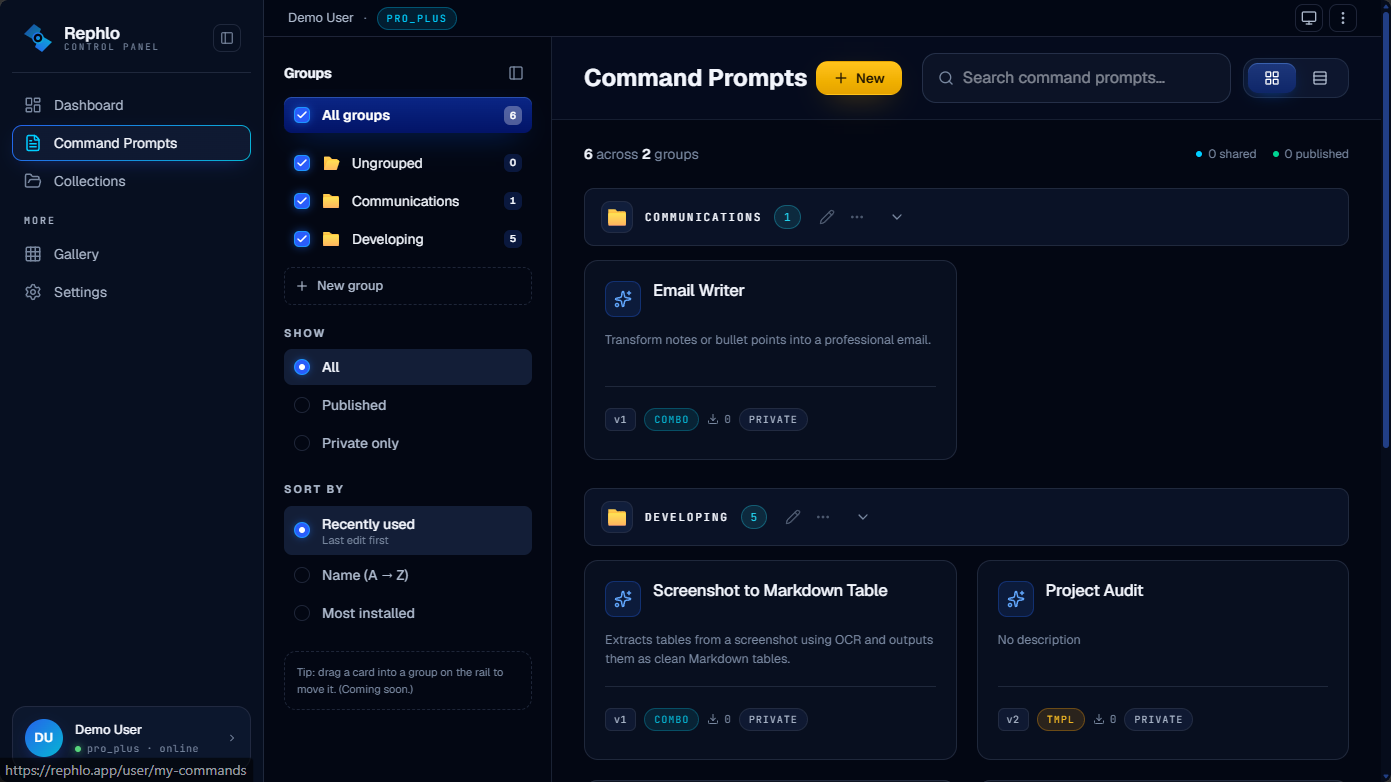
My Commands is your personal workshop for building, refining, and sharing AI commands. A command is a reusable instruction that tells the AI exactly how to transform your text — "fix my grammar," "make this sound friendlier," "summarize in three bullets." This page covers creating commands, the command editor, drafts and versions, and publishing to the public Command Gallery.
You can reach My Commands from the sidebar after signing in. Each command you create here syncs to your desktop app, where you actually run it on selected text.
Creating a command
Click New at the top of the page to open the command editor. A command needs only two things to be saved:
- Title (required) — 3 to 100 characters. This is the name you and others see on cards.
- Instruction (required) — 10 to 10,000 characters. This is the AI's system prompt: the actual directions it follows. Be specific.
Everything else is optional metadata that makes your command easier to find and nicer to use:
| Field | Notes |
|---|---|
| Description | Up to 500 characters. A short, human summary shown on cards. |
| Category | Pick from the preset list (Writing, Email, Code, etc.). |
| Language | The language your command works in. Defaults to English. |
| Tags | Comma-separated. Up to 10 tags, each 30 characters or fewer. |
| Icon | Choose from a preset emoji palette (no custom emoji). |
| Group | File the command into one of your groups (see below). |
| Fixed content append | Up to 2,000 characters automatically added to the end of every response. |
Note: Commands do not store an AI model or provider. When you run a command, it uses the model you have selected in the desktop app at that moment — so the same command works with whichever provider you prefer. See Providers.
Click Save to create the command. It starts as a private draft — only you can see it.
Execution modes
The execution mode controls how your selected text is fed into the instruction.
| Mode | What it does | When to use |
|---|---|---|
| Combination (default) | Automatically injects your selected text alongside the instruction. | Most commands — "rewrite this," "translate this." |
| Standalone | You decide exactly where the text lands by placing the {{INPUT_CONTENT}} variable inside the instruction. | Prompts where the text must sit in a precise spot. |
| Template | The instruction is used as a response template. {{INPUT_CONTENT}} is optional. | Filling a fixed format with generated content. |
Standalone mode requires the {{INPUT_CONTENT}} variable somewhere in your instruction. The editor warns you and blocks saving until you add it.
Editing and version history
Open any command to edit it. Every field is editable. Each time you save, Rephlo automatically snapshots the previous content as a new version — you never lose earlier work. The version number increments on every save.
Open the Version history panel inside the editor to:
- View any previous version's content and changelog.
- Preview an older version's full content before deciding.
- Restore a version — this copies that version's content into a new current version (it does not overwrite history).
- Delete an individual version. You cannot delete the current version.
Organizing with groups
Groups are your private folders for keeping commands tidy. Create a group from the left rail, give it an emoji and optional color, and assign commands to it from the editor's Group field. Commands without a group appear in a synthetic Ungrouped section. Deleting a non-empty group moves its commands back to Ungrouped (you'll see a confirmation telling you how many). For more, see Collections & Groups.
Finding your commands
The toolbar gives you search, filtering, and layout controls:
- Search by name, description, category, or tag.
- Filter by status: All, Published, Private, Shared by me, or Shared with me.
- Sort by Recent, Name, or Installs.
- Toggle between grid and list view.
- Paginate with a configurable page size (grid: 16/24/32/48; list: 20/40/60). Your choice is remembered on this device.
Publishing to the gallery
Publishing makes your command available to everyone in the public Command Gallery. It goes through a moderation review.
Before your first publish, you must choose a public username (3–30 characters: letters, numbers, underscores, hyphens). This becomes your public author profile. Rephlo prompts you for it automatically the first time you submit.
Publishing is only available from your personal workspace. Team and enterprise members cannot publish to the public gallery; the Submit to Gallery action is disabled in those workspaces. To share within your organization instead, use Share (org-scoped) — see Teams & Organizations.
The publish and review lifecycle
A command moves through these states:
- Active — your private draft. The starting point.
- Pending review — submitted, waiting on moderation.
- Published — approved and live in the gallery.
- Rejected — moderation declined it (with a reason). It returns to Active so you can fix and resubmit.
To publish, open a command's action menu and choose Submit to Gallery. You'll be asked to agree to the Gallery Content Policy, then the command enters Pending review. A moderator approves it (it becomes Published) or rejects it with feedback (it returns to Active).
Withdraw: While a command is in Pending review, you can Withdraw it back to Active without losing your draft. You'll need to resubmit to publish.
New Version (published commands): To update a live command, choose New Version. This snapshots the current content as a historical version, bumps the version number, and sends the command back to Pending review for re-moderation.
Unpublish: Remove a published command from the gallery at any time. Its status reverts to Active. People who already installed it keep their copy — nothing is taken away from them.
Duplicating and moving
- Duplicate — from the action menu, make a fresh copy of any of your commands in the current workspace as a new draft. Handy for creating a variant without disturbing the original.
- Move to workspace / Duplicate to workspace — if you belong to more than one organization, you can move or duplicate a command into a different workspace. These options only appear when you have multiple memberships. See Multi-org workspace switching.
Installing on your desktop app
From any command, choose Install to send it straight to your desktop app via a deep link. If the desktop app isn't installed yet, Rephlo offers a download prompt instead — you stay on the page the whole time.
Field limits at a glance
| Field | Limit |
|---|---|
| Title (name) | 3–100 characters |
| Instruction | 10–10,000 characters |
| Description | 0–500 characters |
| Tags | Up to 10, each ≤ 30 characters |
| Fixed content append | 0–2,000 characters |
| Username (for publishing) | 3–30 characters |
Looking for plan limits or what's included on each tier? See Plans & Pricing and the public pricing page.