Command Gallery
The Command Gallery is where you discover ready-made AI commands and send them straight to your Rephlo desktop app. Browse thousands of published commands — both Official ones curated by Rephlo and Community ones shared by other makers — then install the ones you like with a single click.
Open the gallery at Command Gallery. You can browse and search the entire gallery without signing in; you only need an account when you want to install, rate, clone, or save commands.
Browsing and searching
The gallery shows a grid of command cards. Each card displays:
- The command's icon (an emoji chosen by the author).
- The title and a short description.
- The author — an avatar plus name (Official commands show a Rephlo badge).
- The install count and average rating.
- A featured badge (★) on hand-picked commands.
Use the search box in the filter rail to find commands by name or description. Search is debounced as you type, so results update a moment after you stop typing. Any search or filter change returns you to the first page of results.
Cards are responsive: the grid widens from one column on narrow screens up to five columns on very wide displays, so the gallery feels comfortable on a laptop or an ultrawide monitor alike.
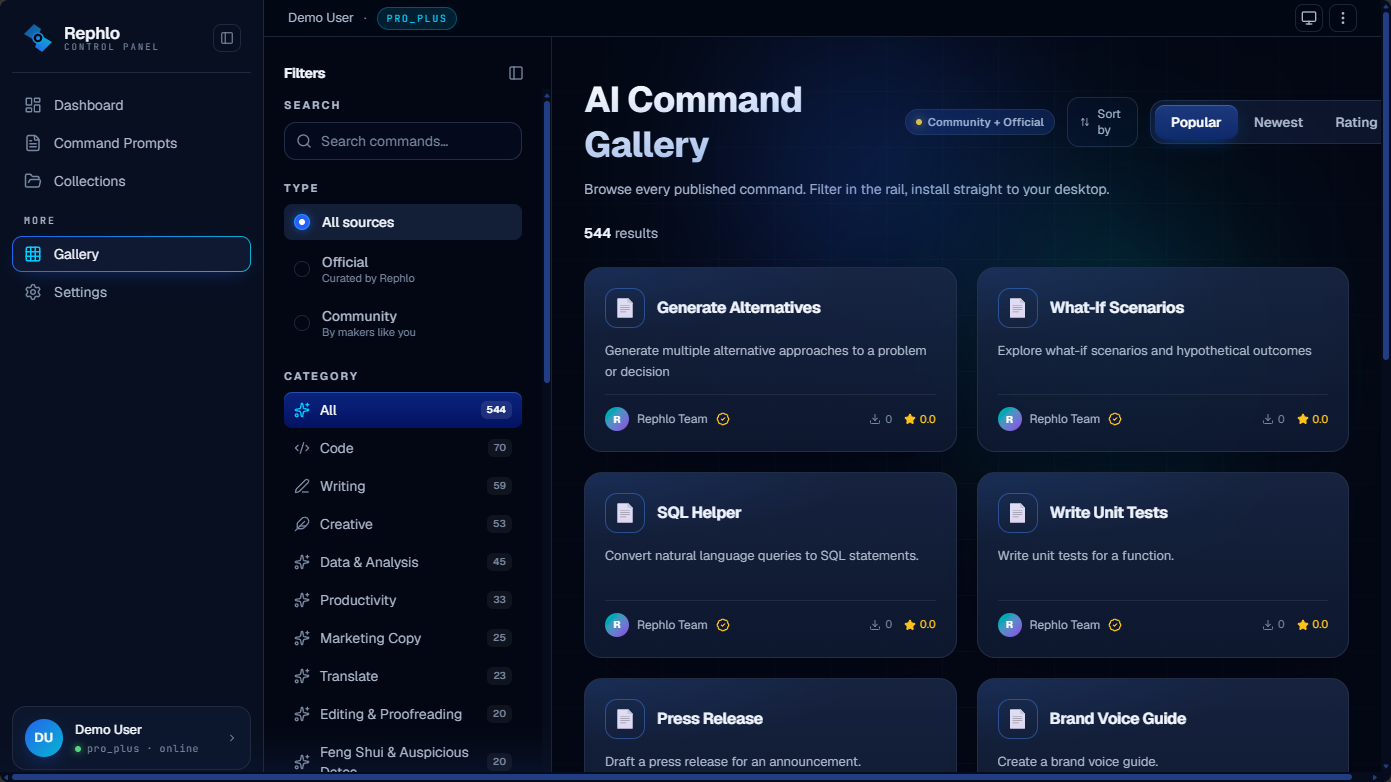 The gallery browse page shows a filter rail on the left and a responsive grid of command cards on the right, with sort controls and a result count above the grid.
The browse page also surfaces a Popular Collections panel that highlights a few of the most popular public collections — each with its item count and the maker who shared it — so you can discover curated sets, not just individual commands. See Collections and Groups.
Filters
The filter rail (a left sidebar on desktop, a slide-in drawer on mobile) lets you narrow the gallery:
| Filter | What it does |
|---|---|
| Search | Matches command name and description. |
| Type | Show All sources, Official (curated by Rephlo) only, or Community (made by other users) only. |
| Category | A live list of categories (Writing, Business, Creative, Code, Data, Translation, and more), each showing how many commands it contains. The list comes straight from the gallery, so counts are always current. |
| Industry | A multi-select list of industries (Marketing, Sales, Finance, Healthcare, Education, Legal, and many more). Pick one or more to show only commands tagged for those fields. |
| Trending tags | Popular tags surfaced automatically from recent activity. Tap a tag to add it as a filter. This section only appears when there are trending tags to show, and you can select more than one. |
Above the grid, a row of active filter chips summarizes everything you've applied and shows the total result count. Click the × on any chip to remove that one filter, or use Clear in the rail to reset all filters at once.
Sort your results by Popular (the default), Newest, or Top Rated. Changing the sort also returns you to the first page.
On mobile, tap the Filters button to open the filter drawer; press Escape or tap outside to close it. The sort selector lives inside the drawer on small screens.
Results are paginated. Use the Per page control to show 12, 24, 36, or 48 cards at a time (12 by default); your choice is remembered on this device. If a search-and-filter combination returns no matches, the gallery shows an empty state that suggests clearing or loosening your filters, and if it can't load the listings (for example, a brief network hiccup) it shows a short error with a Try Again action.
Shareable, bookmarkable views
Your current search, filters, sort, and page are saved in the page's web address. That means you can bookmark a filtered view or copy the link to share exactly what you're looking at, and the browser Back and Forward buttons return you to where you were — scroll position included.
The command detail view
Click any card to open its detail view. It shows everything you need to decide whether a command is right for you:
- Icon, title, and author (with an Official badge where it applies).
- Full description and the command's instruction (the underlying prompt).
- Metadata: category, version, language, execution mode, and the minimum app version required to run it.
- Stats: install count, average rating and number of ratings, and the published and updated dates.
- Tags and an expandable version history so you can see how the command has changed over time.
If you're not signed in, the instruction text is shown trimmed with a prompt to sign in — sign in to read the full prompt and to use the install, rate, and clone actions.
Ratings and reviews
Signed-in users can rate a command using the five-star widget at the top of the detail view. Click a star to submit your rating; the command's average and rating count reflect community feedback. Ratings help everyone find the best commands — and they help authors improve. (Anonymous visitors can read ratings but can't submit them.)
Installing to the desktop app
Installing sends a command from the web gallery into your Rephlo desktop app. Click Install on a command's detail view (or Install Selected when you've picked several — see below).
Installing requires you to be signed in. When you start an install, Rephlo opens a short Install page that gives you two clear paths:
- Open in Rephlo — launches the desktop app via the
app.rephlo://deep link and adds the command to your library automatically. - Download Rephlo — if you don't have the app yet, download it for your operating system (the page detects whether you're on macOS, Windows, or Linux and offers the other platform as an alternative). After you install the app and sign in, the command finishes installing on its own.
You can always get the full set of installers from https://rephlo.app/download.
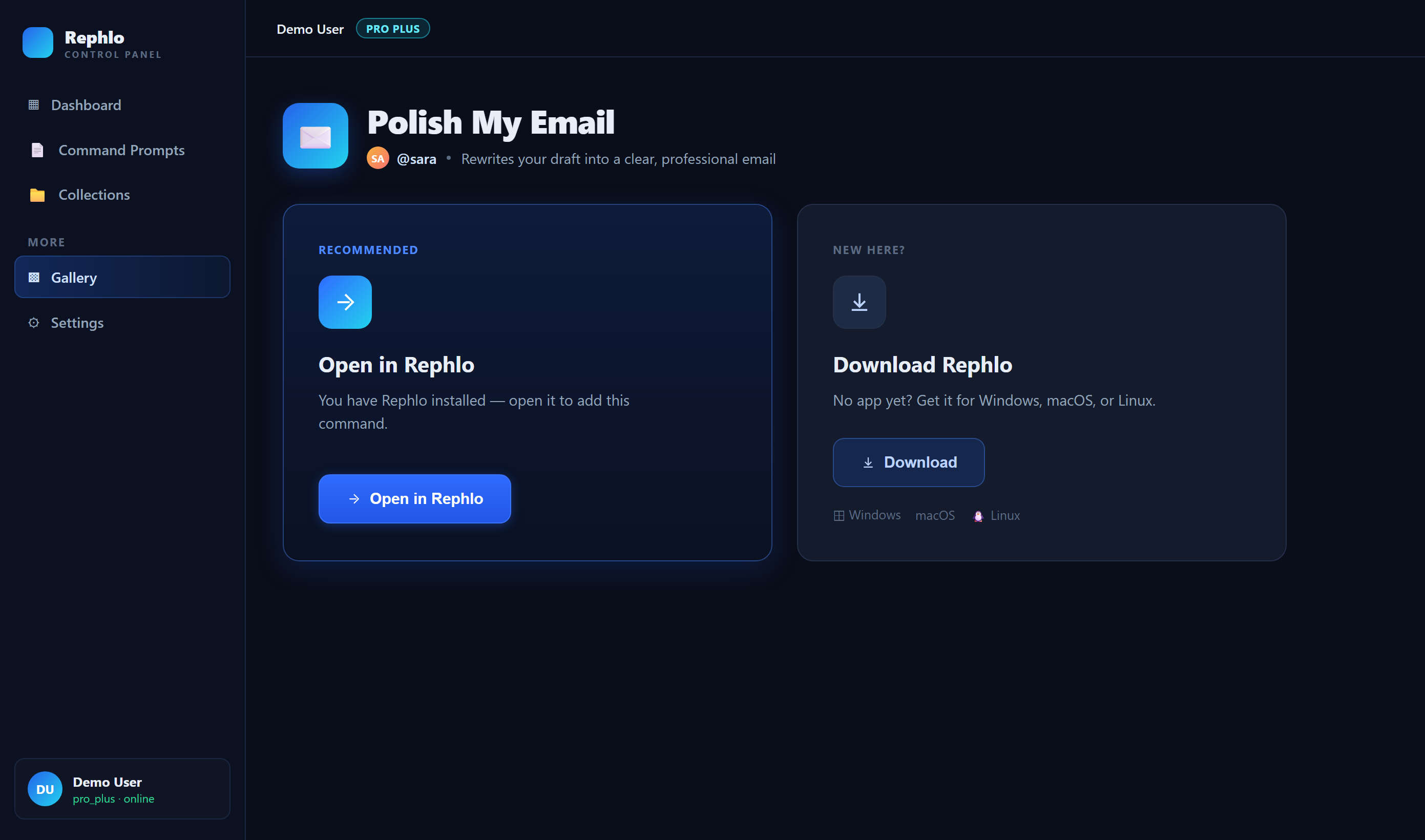
The Install page presents a primary "Open in Rephlo" button and a secondary platform-aware download button, with a link to view all platforms.
Selecting and sharing multiple commands
Want to set up several commands at once, or recommend a curated set to a teammate? Use multi-select.
- Each card has a select control; tick the ones you want. You can select up to 20 commands at a time.
- A floating action bar appears at the bottom of the screen showing how many you've selected.
From the floating bar you can:
- Share — copies a link to your selected set (a
/gallery?ids=...address) to your clipboard. Anyone who opens that link lands in the gallery with the same commands pre-selected, ready to review or install. This is the easiest way to hand a colleague a starter pack. - Review — switches to a view showing only your selected commands so you can double-check the set; the Back to browsing button returns you exactly where you were.
- Clear — empties your selection.
- Collection — saves the selected commands to a collection (signed-in users). See Collections and Groups.
- Clone — copies all selected commands into your own library at once (signed-in users; see below).
- Install Selected — sends the whole set to the desktop app in one batch (signed-in users).
Your selection sticks with you as you browse — it's remembered for the rest of your session and restored from a shared ?ids= link when you open one. On mobile, these actions live behind a menu button on the floating bar.
Cloning to your personal commands
Cloning copies a gallery command into your own library so you can tweak it — change the prompt, adjust the title, or use it as a starting point for something new. Clone a single command from its detail view or card, or clone several at once with the Clone action in the multi-select bar. Cloning requires you to be signed in, and the Clone action only appears on commands you don't already own.
Once cloned, the command lives in My Commands, where you can edit and (if you choose) publish your own version.
Gallery usage policy
The gallery is a shared space, so published commands must follow Rephlo's content and usage policy. In short, commands must not attempt prompt injection, produce harmful content, extract personal information, behave maliciously, or spam the gallery. Quality guidelines help keep listings genuinely useful, and violations can result in a command being removed.
If you come across a command that breaks the policy, use the Report option in its detail view, and reach out through https://rephlo.app if you need help.
What you can do without an account
You're welcome to browse, search, filter, and read command details without signing in. To install, rate, clone, or save to a collection, you'll be prompted to sign in first — once you do, Rephlo brings you right back to where you left off. Learn more in Signing In and Authentication.
Related
- My Commands — manage and publish your own commands.
- Collections and Groups — organize commands into curated sets.
- Desktop and Web Together — how the web gallery and desktop app work as one.
- Commands (Desktop) — how commands run on your machine.