History & Audit
Every command you run and every chat you have with Rephlo is recorded locally on your machine. The History view gives you a complete, searchable audit trail: what you sent to the AI, what came back, which model answered, how many tokens it cost, and whether it succeeded. It is your record for cost tracking, prompt debugging, and recovering text you may have overwritten.
Accessing History
- Open the Dashboard.
- Select History in the sidebar (or set History as your landing page so it opens on launch).
What Gets Recorded
Each execution is stored as a single history record with rich metadata. Records cover both surfaces of the app:
- Command executions — every command you run on selected text, from a screenshot, or from the Dashboard.
- Chat conversations — multi-turn chats, including any Space you attached for context.
A history record captures:
| Field | What it stores |
|---|---|
| Title | An AI-generated, one-line description of the execution (so similar runs are easy to tell apart). Older records may have no title. |
| Action / Command | The built-in action (e.g. "Rewrite", "Summarize") or your command's name. |
| Timestamp | When it ran, stored in UTC and shown in your local time. |
| Provider & Model | The AI provider (OpenAI, Anthropic, Azure, etc.) and the specific model. |
| Input & output tokens | Token counts used for the request and the response. |
| Cache tokens | Cache-creation and cache-read tokens when prompt caching was active, plus whether caching was used. |
| Status | Success, Error (with an error message), or Cancelled (you stopped it — not an error). |
| Processing time | Total duration in milliseconds, from request to response. |
| Trigger source | How it started: Context Menu, Hotkey, Dashboard, or Screenshot. |
| Input type | Whether the input was Text or an Image (screenshot / Vision command). |
| Space | The name of the Space attached for context, if any. |
| Execution mode | Combination (base prompt + instruction + Space data + input) or Standalone (instruction only). |
| Full input & output text | The complete prompt sent and the complete result returned. |
The History View
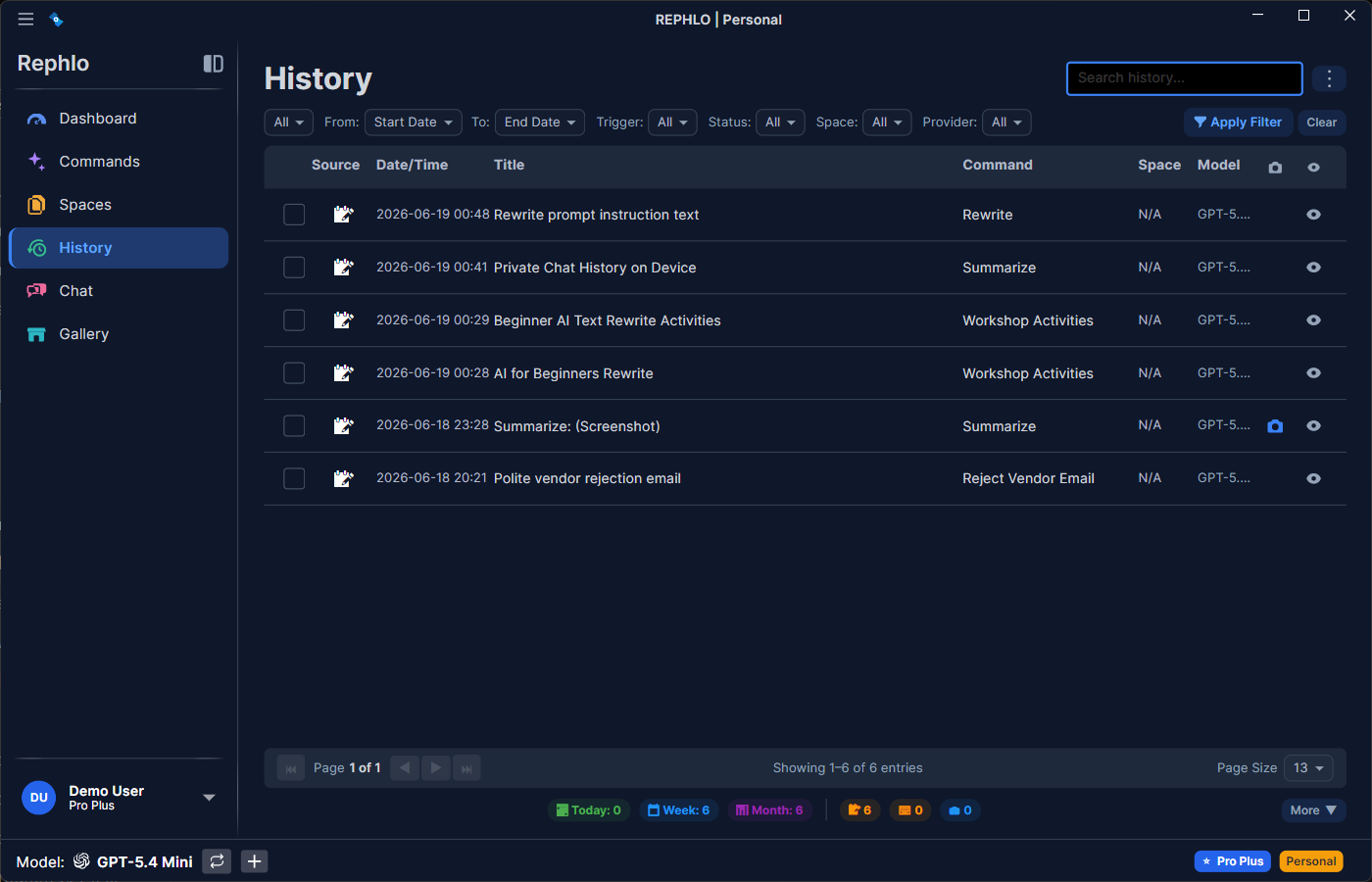
You will see a chronological list grouped by day (Today, Yesterday, and so on). Each entry shows the time, the command, the provider, and a short preview of both the input and the AI's result. Click any entry to open its full detail.
Detailed Audit
Click any history item to open its Detail View. This shows the full record: timestamp, provider and model, token counts (input/output, plus cache tokens if caching was used), processing time, trigger source, the complete input text, and the complete output text. You can copy the input, copy the output, or re-run the command.
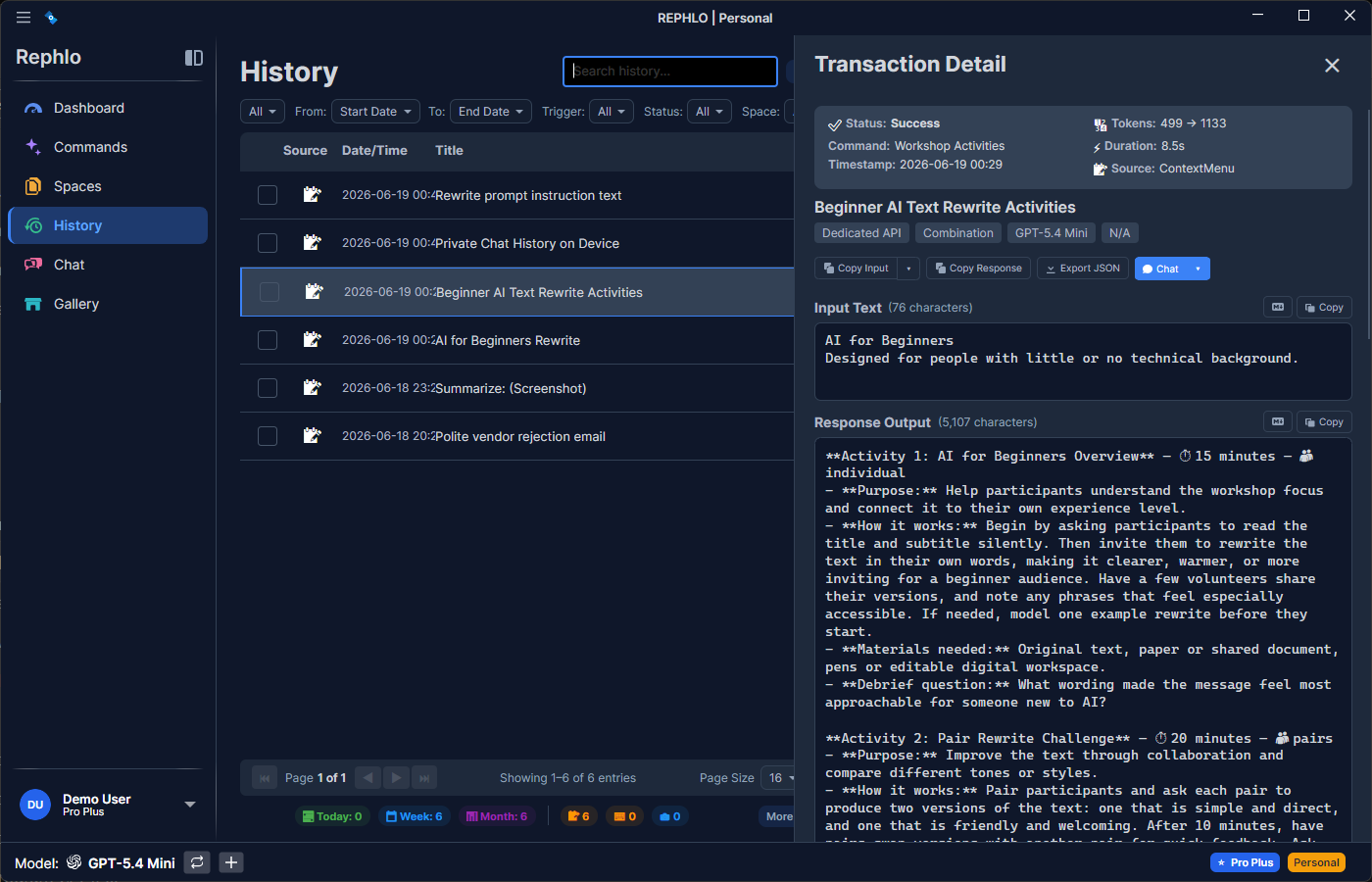
The detail view is what makes Rephlo auditable. Use it for:
- Cost tracking — see exactly how many input and output tokens each run used, and how many were served from cache.
- Prompt engineering — see exactly what was sent to the AI, including any attached Space context and the execution mode, so you can understand why it answered the way it did.
- Recovery — if you accidentally overwrote a document, the original text is preserved in the Input section.
Continue Chat from a Record
A history record stores a snapshot of the context (command instruction and Space file references) it ran with, so you can pick a past execution back up as a chat. Each record carries a context status:
- Active — the original command or Space still exists, or its context was captured at run time, so Continue Chat works normally.
- Orphaned — the command or Space was later deleted and no context snapshot was captured (this also applies to very old records), so Continue Chat is unavailable.
Space Context & Cold Storage
When an execution uses a Space, Rephlo does not copy the Space's documents into every history row. Instead it stores the context once and references it from each record that reuses it:
- No duplication — running the same command against the same Space content reuses the already-stored context instead of saving the files again.
- Efficient storage — identical files are kept only once, no matter how many records reference them.
- Automatic archival — history files you haven't used in a while are compressed to reclaim disk space, and restored automatically the moment you open an old record that needs them.
- Cleanup — when a record (and every record sharing its context) is deleted, the unused context and its files are removed.
Search & Filter
The History view is searchable so you can find a specific run quickly — filter by date range, command, provider, model, status, and token range, or search the input/result text.
Export
You can export your history for backup, migration, or expense tracking. The export is a full-fidelity snapshot — every record with its complete input and output text, all metadata, token and cache counts, status, trigger source, and execution mode. Export is one-way (there is no in-app re-import of an exported history file). Use Settings → Privacy to export.
Retention & Privacy
History is stored locally in your app's database — it is not synced to the cloud. You control how long it is kept from Settings → Privacy:
- Forever — keep everything.
- 90 Days / 30 Days — auto-delete entries older than the chosen window (30 days is the default).
- Immediate — do not save history at all.
You can also Clear All History at any time. See Privacy & Data for retention, redaction, and export details.
Next: Basic Configuration · Privacy & Data