Core Concept: Commands
Commands are the fundamental building blocks of Rephlo. A Command is a saved "recipe" for an AI task: an instruction (prompt) plus configuration that controls how it runs, what context it pulls in, and how its output is delivered. Commands are stored locally as database records, and can optionally be published to the online Command Gallery.
Anatomy of a Command
Every Command has the following core properties:
| Field | Limit | Purpose |
|---|---|---|
| Name | max 100 chars, unique | A short, descriptive title (e.g., "Summarize Email"). |
| Instruction | min 10, max 10,000 chars | The full prompt — persona + task (raised from 5,000 in v2.0). |
| Description | optional, max 500 chars | Helper text explaining what the command does. |
| Icon (emoji) | optional, max 16 chars | A visual symbol shown on the Dashboard and lists. Supports emoji with ZWJ sequences. |
| Group | optional | Assign to a Command Group for Card View organization. |
| Execution Mode | — | How the command is processed (see below). |
| Default Space | optional | A linked Space used for quick execution. |
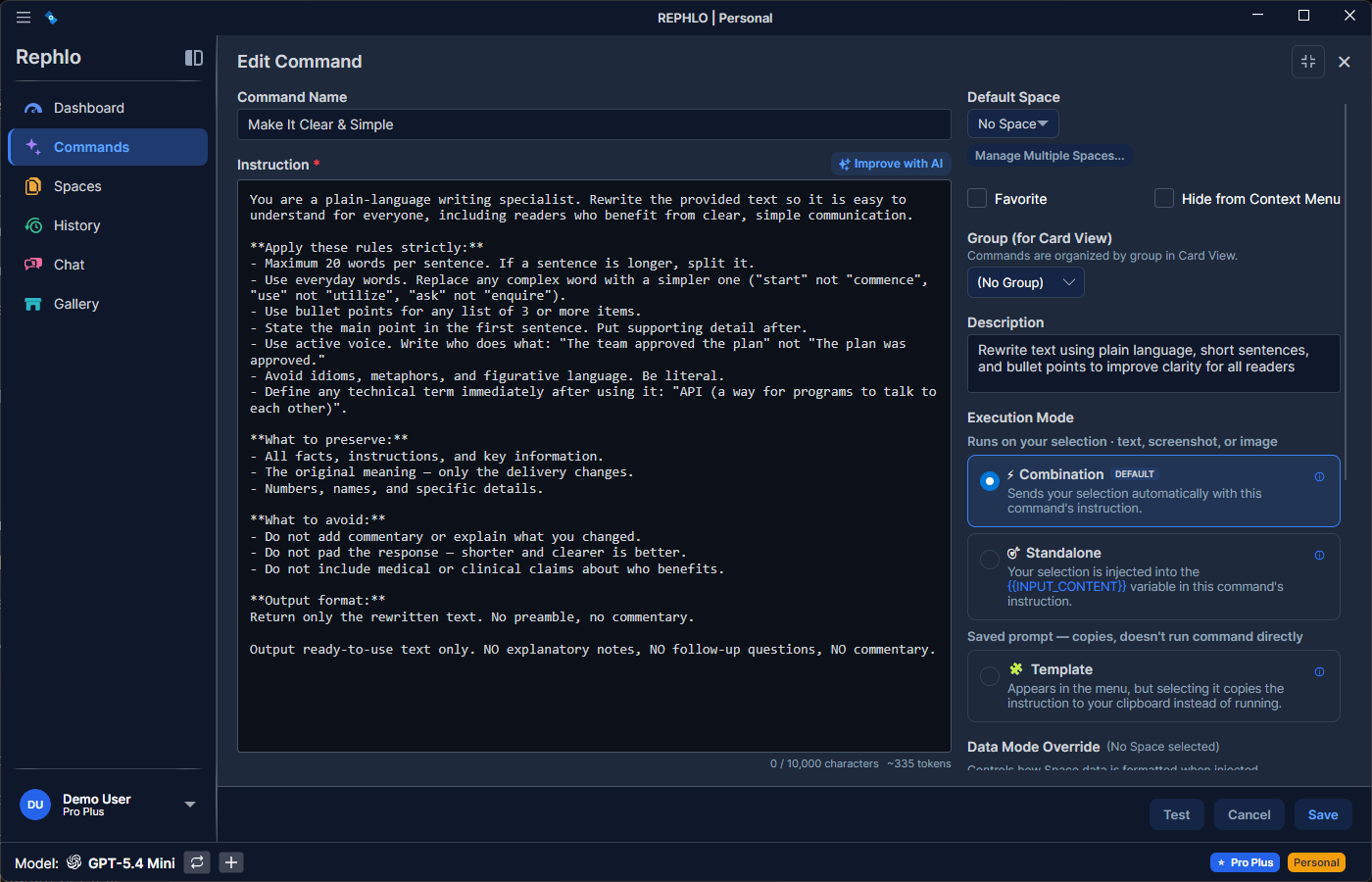
Tip: Click Improve with AI in the editor to have Rephlo enhance your instruction using prompt-engineering best practices. See the AI Command Builder.
Execution Modes
A Command's Execution Mode determines how it handles input and output. You pick the mode when you create or edit a command. There are three modes:
1. Combination Mode (Default, Context-Aware)
The most powerful mode. Rephlo automatically assembles three elements for you:
- Your Instruction (the command logic)
- Selected Text (what you highlighted on screen)
- Active Space data (relevant documents from your knowledge base, if a Space is attached)
- Use case: "Rewrite this email based on our tone guide."
- Behavior: You write only the instruction text. You do not need to place
{{INPUT_CONTENT}}or{{space_data_all}}manually — Rephlo injects them.
2. Standalone Mode (Manual Control)
You take full control over prompt structure by placing variables yourself, deciding exactly where input text and Space data appear.
- Use case: "Generate a random password", "Explain quantum physics", or any prompt with precise variable placement.
- Variables:
{{input_content}},{{space_data_all}}, and filename-based variables are all resolved at runtime.
3. Template Mode (No AI Execution)
Template-mode commands do not call an AI. Instead, the instruction is copied to your clipboard so you can paste it into an external AI tool (ChatGPT, Claude.ai, Gemini, etc.). See Template Mode.
- Use case: Storing refined prompts for browser-based AI services.
- Behavior: The instruction text is placed on the clipboard as-is. No API key is needed, and variables are not resolved.
Which mode should I use?
- Combination — Best for most tasks; the default and recommended mode.
- Standalone — When you need precise control over where input text and Space data appear.
- Template — When storing prompts for external, browser-based AI tools.
Variables & Templating
In Standalone (and within Combination instructions where you want explicit placement), you can use double-brace placeholders. Their behavior depends on the execution mode:
| Variable | Combination Mode | Standalone Mode | Template Mode |
|---|---|---|---|
{{input_content}} | Auto-injected (no variable needed) | Place it manually | Not resolved |
{{space_data_all}} | Auto-injected | Place it manually | Not resolved |
{{filename.ext}} (e.g., {{style_guide.pdf}}) | Auto-injected by name | Place it manually | Not resolved |
Variable Reference
{{input_content}}— injects the text currently highlighted on your screen (your selected text). Case-insensitive; the editor's Insert menu writes it as{{INPUT_CONTENT}}.{{space_data_all}}— injects all data from the active Space (your knowledge base documents).{{filename.ext}}— injects content from a specific file in your Space, referenced by its name (e.g.,{{meeting-notes.md}}for a file named "meeting-notes.md").
Example Standalone Command Prompt:
Review this text: {{input_content}}

Apply the writing rules from: {{style_guide.pdf}}
Spaces, Default Space & Data Mode
Commands relate to Spaces through a many-to-many relationship: a Command can be linked to several Spaces, and a Space can serve many Commands.
- Default Space — If set, this Space is used for quick execution from the context-menu overlay without prompting you to pick one. The default must be one of the Spaces linked to the command; if a Command has multiple Spaces and no default, you choose at runtime.
- Data Mode Override — Each Space has a default data mode (Smart Search vs. Compact). A Command can override it per-command via Data Mode Override to trade fidelity for token savings on that command alone. See Data Modes & Compaction.
Output: Fixed Content Append
A Command can define a Fixed Content Append (optional, max 5,000 chars) — text that is appended to the AI's output only at delivery time (when copied to your clipboard or replaced into your document). It is not part of the prompt, the API response, or your history record. Example: a signature line like "— Processed by Rephlo".
Favorites
You can mark frequently used commands as Favorites (up to 10):
- Favorites appear on the Home Dashboard for one-click access.
- They are prioritized in search results.
Organization, Hiding & Archiving
- Groups & ordering — Commands can belong to a Command Group, and drag-and-drop lets you reorder them within a group. Ungrouped commands appear in an "Ungrouped" section.
- Hide from context menu — A command can be hidden from the context-menu overlay (it stays fully executable elsewhere, just not listed in the overlay). This is independent of archiving.
- Archive (soft delete) — Commands are archived rather than deleted outright. Archived commands are excluded from active views and context menus. A command must be archived before it can be permanently deleted — a safe two-step workflow.
- "New" badge — Freshly created commands (e.g., from the AI Builder) show a New badge until your first edit or execution.
Gallery Metadata & Cloud Sync
Commands can be published to the online gallery, which adds extra metadata and sync tracking:
- Gallery metadata — tags, an emoji icon, a language code (BCP-47, defaults to
en), an industry classification, and a minimum app version (semver) travel with the command on sync. - Sync state — Rephlo tracks each command's synchronization status, its server-assigned id, its online version, and when it was last synced. Local-only commands have a sync status of None.
- Gallery stats — Once published, install count and average rating are shown in the command's detail view (these are read on each pull and not stored locally).
For the full publishing and conflict-resolution workflow, see Cloud Sync & Versioning and Managing Commands.
Next Concept: Learn about Spaces to add memory to your commands.