Collections & Groups
Collections and groups are two different ways to keep your commands tidy. A collection is a folder you build by hand to bundle related commands — perfect for a project, a client, or a workflow you want to share as a set. A group is a lightweight emoji-labelled folder that lives inside My Commands and keeps your own library organized.
This page covers both, plus how to share a collection with your team.
Collections at a glance
A collection groups commands into a single named folder. You can give it a name, a short description, and a visibility setting, then add as many commands to it as you like. Open your collections from Collections & Groups.
The Collections overview shows tabs across the top so you can filter what you see:
| Tab | What it shows |
|---|---|
| Mine | Every collection you own. The New Collection button and the "+" ghost card appear here. |
| [Your team name] | Collections that other members of your organization have shared with the team. Only appears if you belong to an organization. |
| All | Your collections and team-shared collections together. |
Each card shows the collection name, description, how many commands it holds, and when it was last updated.
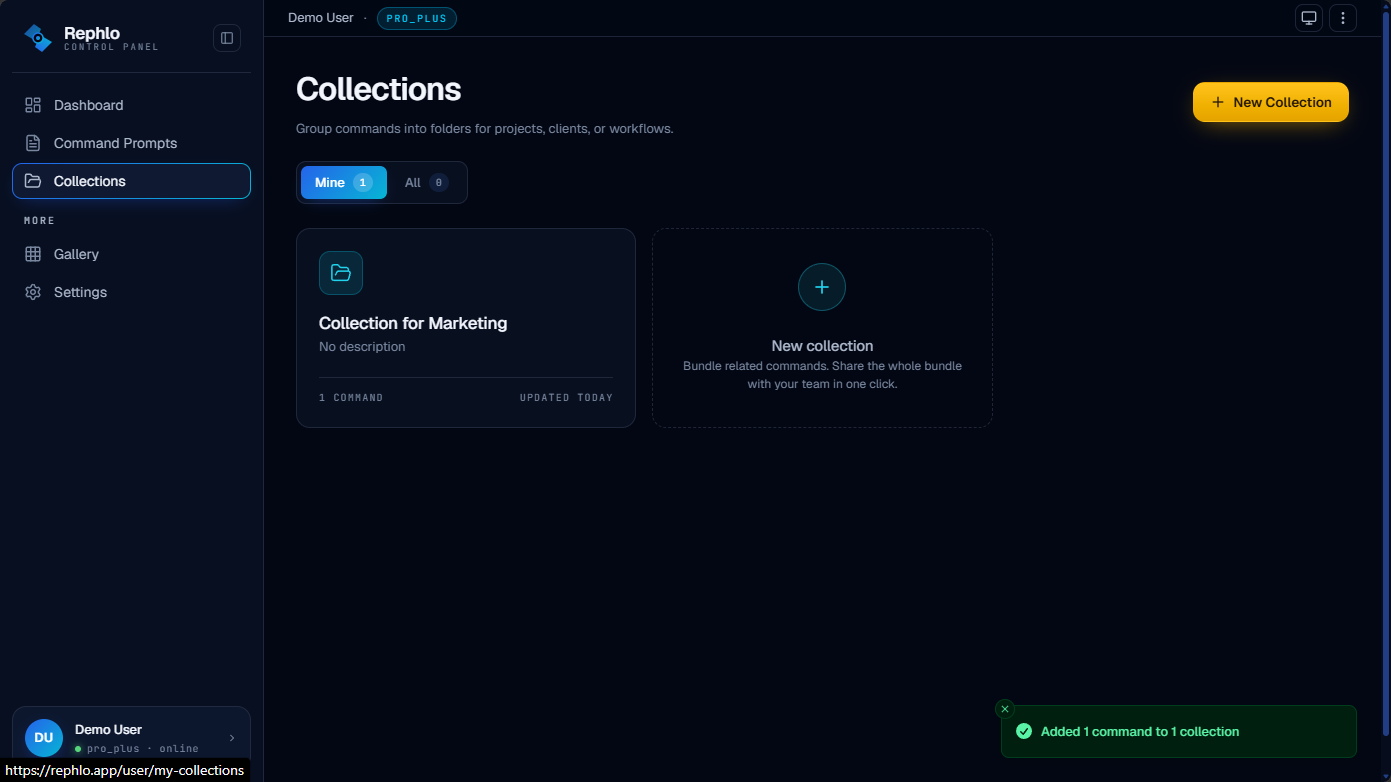
Creating a collection
- Go to Collections & Groups and make sure you are on the Mine tab.
- Click New Collection (or the dashed New collection card in the grid).
- Enter a name (up to 100 characters) and an optional description (up to 500 characters).
- Pick a visibility (see Visibility below). New collections default to Private.
- Save. The new collection opens so you can start adding commands.
You can also create a collection from the quick-create menu anywhere in the app — it appears under the Mine tab the next time you visit Collections.
Adding commands to a collection
Open any command from the Command Gallery or My Commands and add it to a collection from there. Inside a collection's detail view you can:
- Search the commands in the collection with the search box in the toolbar.
- Sort them by most recent, name, or popularity.
- Open a command card to see its full details.
A collection can hold up to 50 commands. Removing a command from a collection only removes the link — the command itself is never deleted.
Renaming, moving, duplicating, and deleting
Open a collection to reveal its toolbar. From there you can:
- Edit (pencil icon) — change the name and description.
- Delete (trash icon) — remove the collection. The commands inside are not deleted; only the collection folder goes away.
- Move to workspace (folder-arrow icon) — move the whole collection into another workspace you belong to. Only shown if you are a member of more than one workspace.
- Duplicate to workspace (copy icon) — make a copy of the collection in another workspace, leaving the original in place.
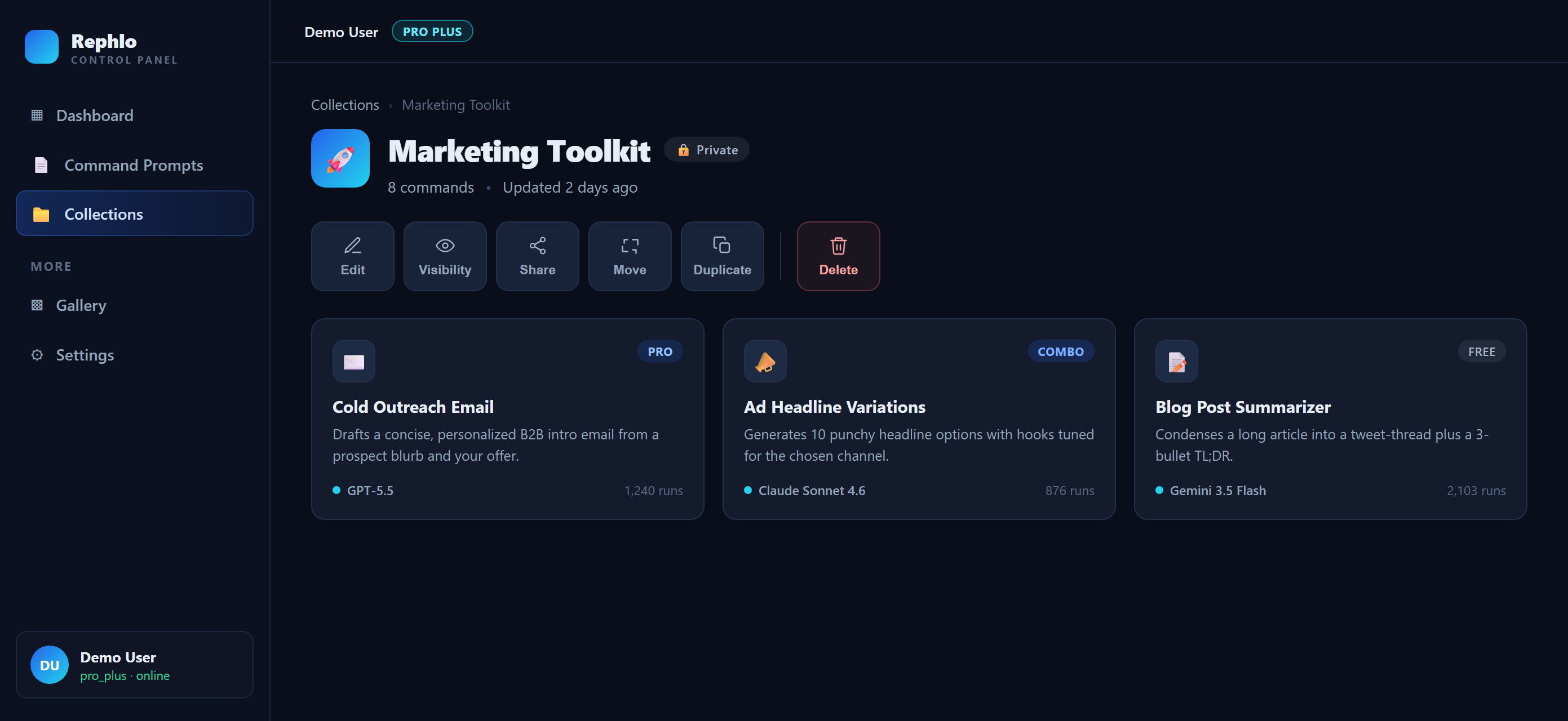
Move and duplicate let you undo the action right after you confirm, in case you picked the wrong destination.
Visibility: who can see a collection
Every collection has a visibility setting that controls who can open it. The label you see is based on the visibility you choose plus whether the collection is shared with your team:
| Label | Meaning |
|---|---|
| Private | Only you can open it. |
| Unlisted | Anyone with the link can open it, but it is not listed in the public gallery. |
| Public | Anyone can open it and it appears in the public gallery for everyone to discover. |
| Protected | A private collection that you have shared with your organization. You and your teammates can open it; nobody outside your team can. |
You change visibility from the icons in the collection's toolbar. Switch between Private, Unlisted, and Public with one click.
Team and Enterprise note: If your organization restricts sharing, your visibility choices may be limited to Private, and you share with the team using the Share with org action instead. See Teams & Organizations.
Sharing a collection with your team
If you belong to an organization, you can share a whole collection with your teammates in one step rather than sharing commands one at a time:
- Open the collection.
- Click Share with org (share icon) in the toolbar.
- Confirm. The collection becomes Protected and shows up on your teammates' [Team] and All tabs.
To stop sharing later, open Manage Shared Collections in your workspace and choose Revoke. For more on team sharing, see Teams & Organizations.
Command groups: emoji folders for your own library
Groups are a simpler way to organize the commands in My Commands. Each group is a small folder with:
- A name (up to 100 characters).
- An optional emoji so it stands out at a glance (for example, ✍️ Writing or 🛠️ Dev tools).
- An optional color.
- An optional short description.
Assign a command to a group, or move it back to Unsorted, from the command's own settings. Groups are personal to your library and your active workspace — they are not the same as collections and are not shared with your team.
Use groups to keep your everyday commands sorted, and use collections when you want to bundle commands into a named set you can share or publish.
How collections and groups compare
| Collection | Group | |
|---|---|---|
| Purpose | Bundle commands into a shareable set | Sort your own command library |
| Visibility | Private, Unlisted, Public, or Protected | Personal only |
| Shareable with team | Yes (as Protected) | No |
| Can be published publicly | Yes | No |
| Has emoji / color | Folder cards use a color accent | Emoji and color |
Related pages
- My Commands — create and manage your own commands and assign them to groups.
- Command Gallery — discover commands and collections to add to your library.
- Teams & Organizations — share commands and collections with your team.